The speaker list holds the people who speak at your event. The app shows their profiles and the sessions where they speak. Speakers can also log in to the VIP portal when your event has it.
To open the list, click Speakers in the main menu of your event. Your event can use a different name for the menu item. You need access to the Speakers feature. See Roles and access.
Add a speaker
- Click New. The New Speaker screen opens.
- Fill in the fields. See “The speaker form” below. Only Last is required.
- Click Save & View or Save & New.
If the save fails, the CMS shows the error at the top of the form, for example when a speaker with the same first name, last name, job title, and organization already exists.
To change a speaker, open the speaker and click Edit. Click Save & View to save and open the details, or Save & List to save and go back to the list.
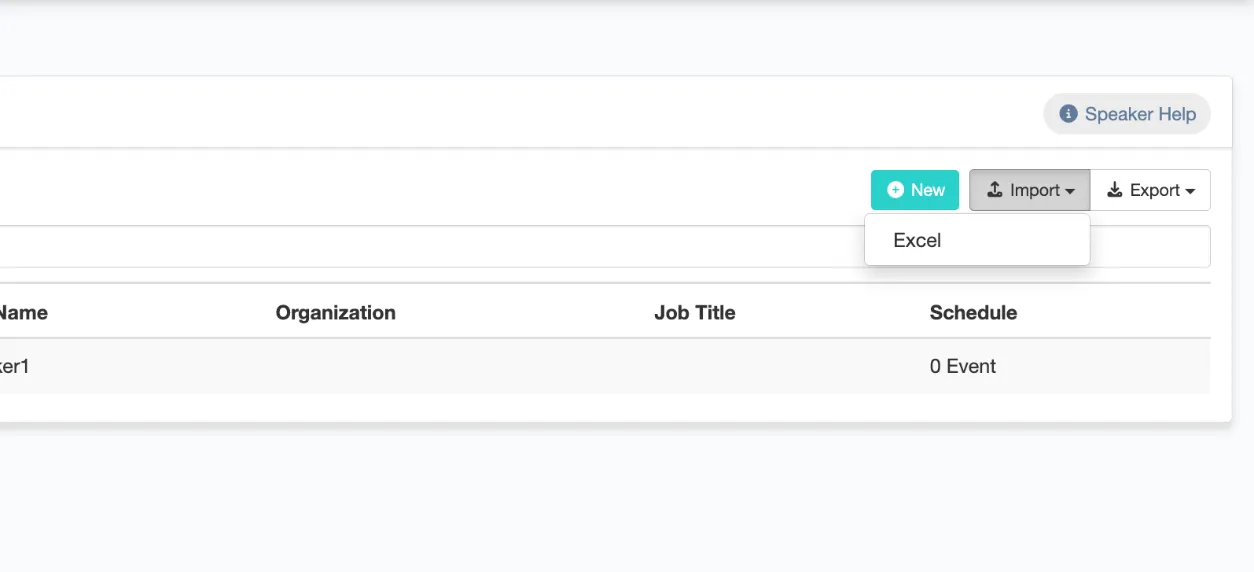
To add many speakers from a spreadsheet, click Import and then Excel. See Import content.
If your organization connects a data service, an Import from button with the name of the service shows at the top of the form.
Private User Information
- Login Email: the email that the speaker uses to log in to the app and to the VIP portal. The CMS changes it to lowercase.
- Manage Password: see “Set a speaker’s password” below.
- Visibility: select Always visible, Visible with session, or Hidden. With Visible with session, the app shows the speaker only when the speaker has a session that attendees can see. With Hidden, the app does not show the speaker. A new speaker starts with Visible with session.
Settings
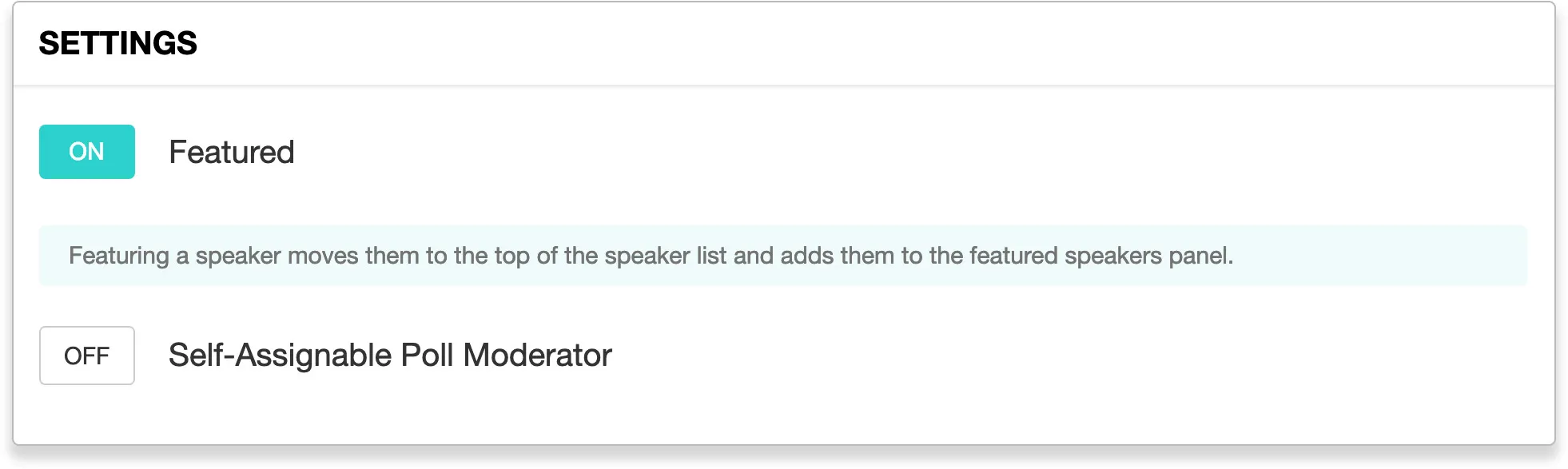
- Featured: moves the speaker to the top of the speaker list. The Featured Speakers panel on the home screen shows these speakers. See Home screen layouts.
- Self-Assignable Poll Moderator: lets the speaker select the sessions to moderate in the VIP portal. It shows only when your event has self-selecting moderators. See Polls.
Set a speaker’s password
You can set a password only after you save a login email.
- Open the speaker and click Edit.
- Click Manage Password.
- Type the password in Password and again in Retype Password.
- Save the speaker.
The password must have at least 14 characters, with at least one uppercase letter, one lowercase letter, and one number. The CMS sets the password only when you fill in both fields. The new password replaces the old one. A speaker who is logged in stays logged in, but the old password stops working.
If the login email belongs to a CMS user, the form shows a message that you may not change the password.
Give a speaker access to the VIP portal
When your event has the speaker VIP portal, a speaker logs in to the VIP portal with the login email and password.
- Type the speaker’s Login Email and save.
- Set a password for the speaker, or tell the speaker to request one on the VIP portal login page.
When an attendee has the same login email, the attendee and the speaker use the same login. See Attendees.
A person who is a speaker in any event of the app cannot use the universal password in any event of the app. The person logs in with the speaker’s own password. See Event access.
In the VIP portal, a speaker can edit the profile, add attachments and links to a session, run the live poll of a session, and see the survey results of a session.
Each session has one live poll. All the speakers of the session share it. Each of them can create the poll, run it, hide it, and show it again.
Feature speakers and set their order
-
Edit a speaker, turn on Featured and save.
-
On the list, featured speakers show first with a drag handle. Drag a featured speaker up or down to change the order.
Speakers
- Agenda Sessions Section Header and Agenda Sessions Section Icon.
This article is a copy of Speakers and Features and menu in the Touchpoint documentation.
Comments
0 comments
Please sign in to leave a comment.